
RemoveTexts vs Shrinkpad
Side-by-side comparison to help you choose the right AI tool.

RemoveTexts
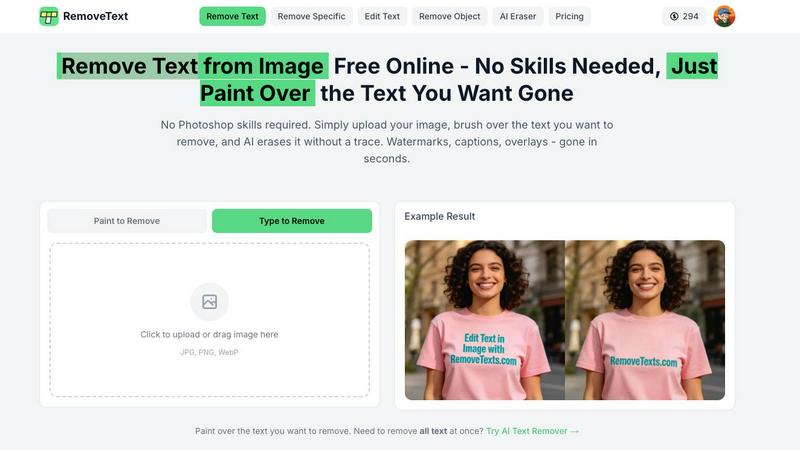
RemoveTexts is an AI tool that effortlessly removes text and watermarks from images in seconds, making editing simple for everyone.
Last updated: March 11, 2026

Shrinkpad
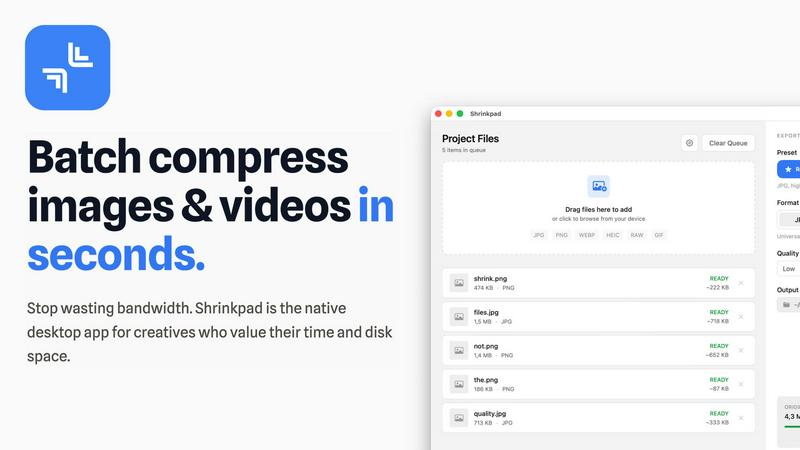
Shrinkpad compresses images and videos on your Mac in seconds, saving space and streamlining your creative workflow.
Last updated: February 28, 2026
Visual Comparison
RemoveTexts
Shrinkpad
Feature Comparison
RemoveTexts
Paint to Remove
This feature allows users to brush over specific areas of text that they want to eliminate. With precise control, you can target only the unwanted elements, ensuring that the rest of your image remains intact and visually appealing.
Auto Remove All
Utilizing advanced AI technology, this one-click feature automatically detects and removes every text element in an image. It saves users time and effort, making it ideal for those who want a quick and hassle-free solution.
Edit & Replace Text
With this functionality, users can replace existing text in images while matching the original font style. This feature is particularly useful for marketers and designers who wish to modify promotional materials without starting from scratch.
Remove Objects
Beyond just text, RemoveTexts can also erase unwanted objects, logos, and visual elements from images. This versatility makes it a comprehensive tool for anyone looking to enhance their visuals by cleaning up distracting elements.
Shrinkpad
One-Drop Import
With Shrinkpad's intuitive one-drop import feature, users can simply drag and drop entire folders onto the application. This functionality automatically detects and adds all supported images and videos to the batch processing list, eliminating the need to manually select individual files.
Smart Detection
Shrinkpad's smart detection technology identifies over 30 different image formats, including popular RAW formats, alongside major video formats. This ensures that all media files are processed optimally while non-media files are ignored for a streamlined experience, allowing users to focus on their creative outputs.
Unlimited Batching
Designed for efficiency, Shrinkpad allows users to process thousands of assets simultaneously without crashing. Unlike web-based tools that may falter under heavy loads, Shrinkpad handles massive queues effortlessly, ensuring that users can maximize their productivity without interruptions.
Privacy First
Shrinkpad is built with privacy at its core. All processing occurs locally on the user's machine, meaning that no files are ever uploaded to the cloud. This not only protects sensitive data but also ensures that users are not dependent on internet speeds, providing a secure and fast compression experience.
Use Cases
RemoveTexts
E-Commerce Product Photos
Online sellers frequently use RemoveTexts to clean up product images by removing watermarks or text overlays. This enhances the visual appeal of their listings, helping to attract more potential buyers.
Legal Document Redaction
Legal professionals rely on RemoveTexts to redact sensitive information from documents and images. The tool's ability to erase text while preserving the background ensures that redacted documents look professional and trustworthy.
Social Media Content Creation
Content creators and marketers use RemoveTexts to produce high-quality visuals by removing unwanted text from their images. This allows them to maintain a clean and cohesive aesthetic across their social media platforms.
Academic and Research Publications
Researchers can use RemoveTexts to remove unnecessary text from figures and images in their papers. This ensures that their visuals are clear and directly convey the intended information without distractions.
Shrinkpad
Photographers Optimizing Portfolio
Professional photographers can use Shrinkpad to quickly compress high-resolution images for their portfolios, ensuring that they retain visual quality while reducing file sizes for faster loading times on websites and easier sharing with clients.
Designers Streamlining Assets
Graphic designers often work with multiple image formats in projects. Shrinkpad allows them to batch compress assets directly from design tools like Figma or Photoshop, saving hours of manual work and enabling smooth collaboration with clients and team members.
Developers Enhancing Website Performance
Web developers can leverage Shrinkpad to optimize images and videos before deployment. By significantly reducing file sizes, they improve website load times and user experience, which can lead to better performance metrics and higher search engine rankings.
Content Creators Managing Media Libraries
Content creators with extensive media libraries can benefit from Shrinkpad's ability to handle mixed media batches. Whether they are compressing photos for social media or videos for YouTube, the tool ensures that all assets are optimized in a single workflow, enhancing productivity.
Overview
About RemoveTexts
RemoveTexts is an innovative AI-driven image editing tool specifically designed to eliminate unwanted text from images swiftly and effortlessly. With its user-friendly interface, anyone can remove watermarks, captions, subtitles, and other text elements without needing extensive design skills or experience with complex software like Photoshop. The main value proposition of RemoveTexts lies in its cutting-edge deep learning inpainting technology that not only erases text but also reconstructs the background seamlessly. This ensures that the final image appears professional and polished, making it perfect for creators, marketers, and everyday users who need clean visuals in mere seconds. Trusted by over 100,000 users globally, RemoveTexts is the go-to solution for quick and effective text removal in various applications, from personal projects to professional marketing materials.
About Shrinkpad
Shrinkpad is a cutting-edge, privacy-first desktop application specifically designed for macOS, aiming to revolutionize batch media compression. It addresses a significant challenge faced by modern creatives: the struggle with oversized image and video files that not only occupy precious disk space but also hinder workflow efficiency. Unlike traditional cloud-based solutions, Shrinkpad operates solely on your local machine, utilizing native macOS frameworks. This guarantees the utmost privacy, ensures that your sensitive data remains secure, and eliminates reliance on internet bandwidth. The application is engineered to process hundreds or even thousands of files in mere seconds, optimizing performance especially for Apple Silicon. Shrinkpad allows photographers, designers, developers, and content creators to compress files by up to 90% while intelligently maintaining visual quality. Supporting over 50 formats, from JPGs and RAW files to 4K MP4 videos, Shrinkpad transforms a typically cumbersome task into a simple one-click batch operation. This makes it an essential productivity tool for anyone looking to optimize their digital assets and reclaim valuable storage space.
Frequently Asked Questions
RemoveTexts FAQ
How does RemoveTexts work?
RemoveTexts utilizes advanced AI technology to analyze the surrounding pixels of the text you want to remove. It then intelligently reconstructs the background, ensuring that the area appears seamless and undetectable.
What file formats does RemoveTexts support?
RemoveTexts supports several image formats, including JPG, PNG, and WebP, allowing for a wide range of files to be processed easily within the tool.
Is there a limit to the size of images I can upload?
Yes, RemoveTexts allows uploads of images up to 10 MB. This size limit is in place to ensure optimal processing speed and quality results.
Can I remove text from images with complex backgrounds?
Absolutely! RemoveTexts is designed to work effectively even on images with intricate backgrounds. The AI technology ensures that the removed text blends perfectly with the surrounding elements, maintaining the overall quality of the image.
Shrinkpad FAQ
Can I use Shrinkpad for free?
Yes, Shrinkpad offers a Free Starter plan that includes essential tools for casual users, allowing compression of up to 10 files per batch.
What file formats does Shrinkpad support?
Shrinkpad supports a wide range of formats, including popular ones like JPG, PNG, WEBP, AVIF, MP4, MOV, and many RAW formats, making it versatile for various media types.
Does Shrinkpad support video compression?
Absolutely! Shrinkpad is capable of compressing various video formats, including 4K MP4 and MOV, ensuring that both images and videos can be optimized efficiently.
How many files can I process at once?
With Shrinkpad, users can process thousands of files simultaneously, thanks to its unlimited batching feature, which is designed to handle massive queues without any crashes.
Alternatives
RemoveTexts Alternatives
RemoveTexts is an AI-powered image editing tool designed to remove unwanted text from images quickly and efficiently. As part of the image and photo category, it simplifies the process of cleaning up visuals, allowing users to effortlessly erase watermarks, memes, and other text elements without requiring advanced design skills or complex software like Photoshop. Users often seek alternatives to RemoveTexts for various reasons, including differing pricing models, specific feature sets, or compatibility with different platforms. When choosing an alternative, it's essential to consider factors such as ease of use, the range of supported languages, customization options, and the quality of output, as these will significantly impact the overall user experience.
Shrinkpad Alternatives
Shrinkpad is a powerful desktop application designed for macOS that specializes in compressing images and videos to optimize storage and improve workflow efficiency. As a privacy-first tool, it allows users to process files locally without uploading data to the cloud. This makes it particularly appealing to creative professionals who often handle large media files and prioritize data security. Users frequently seek alternatives to Shrinkpad for various reasons, including budget constraints, feature sets that may better align with specific needs, or compatibility with different operating systems. When selecting an alternative, it’s crucial to consider factors such as processing speed, the range of supported file formats, ease of use, and the degree of privacy offered by the software.